
After creating a location, you can update its details anytime. Here's how to edit your location settings.
Accessing Location Settings
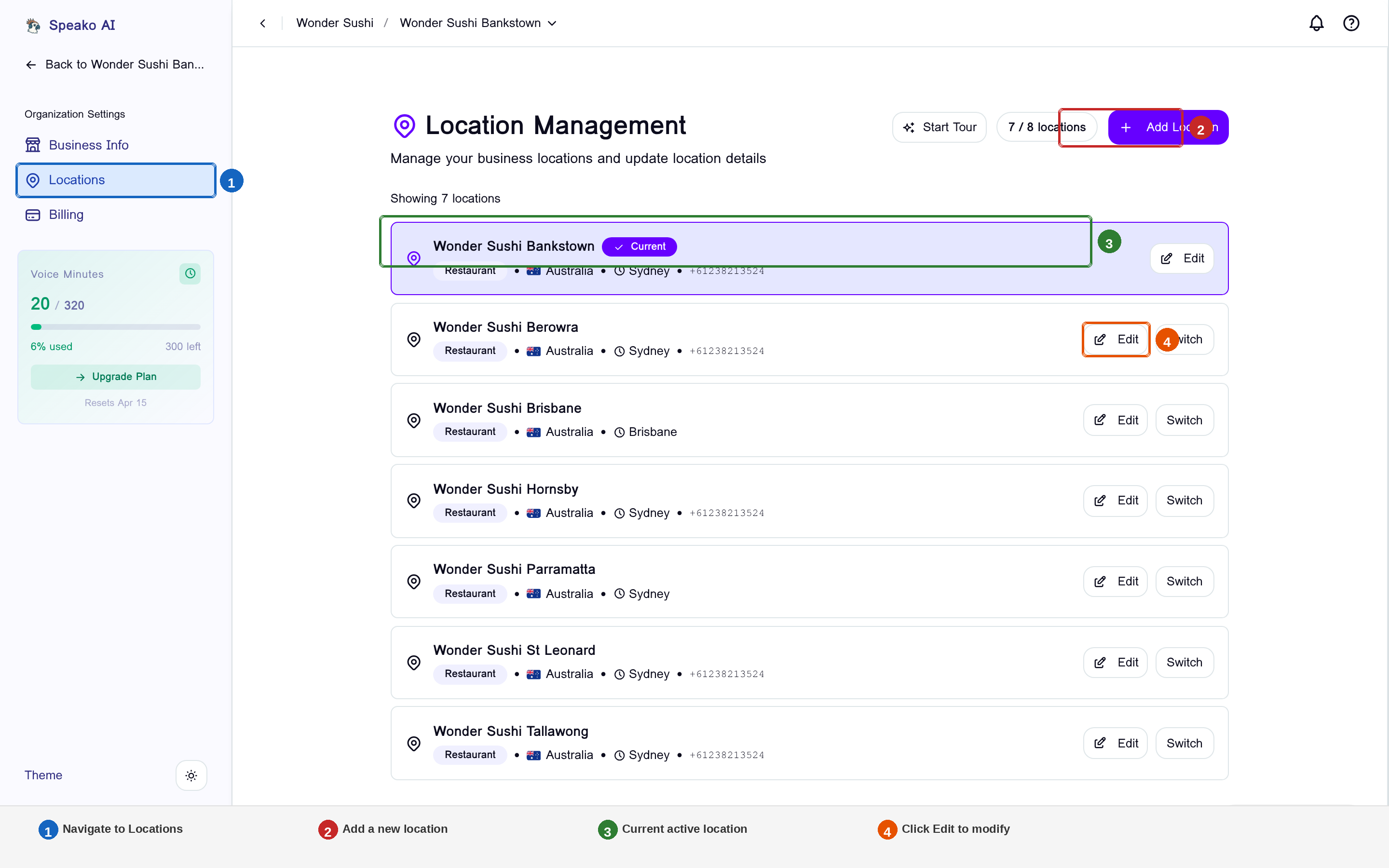
- Go to Locations in the sidebar (1)
- To add a new location, click + Add Location (2)
- Your current active location is highlighted with a badge (3)
- Click the Edit button (4) on any location to open its settings panel
Editable Fields
When you click Edit, a panel slides out from the right side containing all your location settings grouped into four main sections.
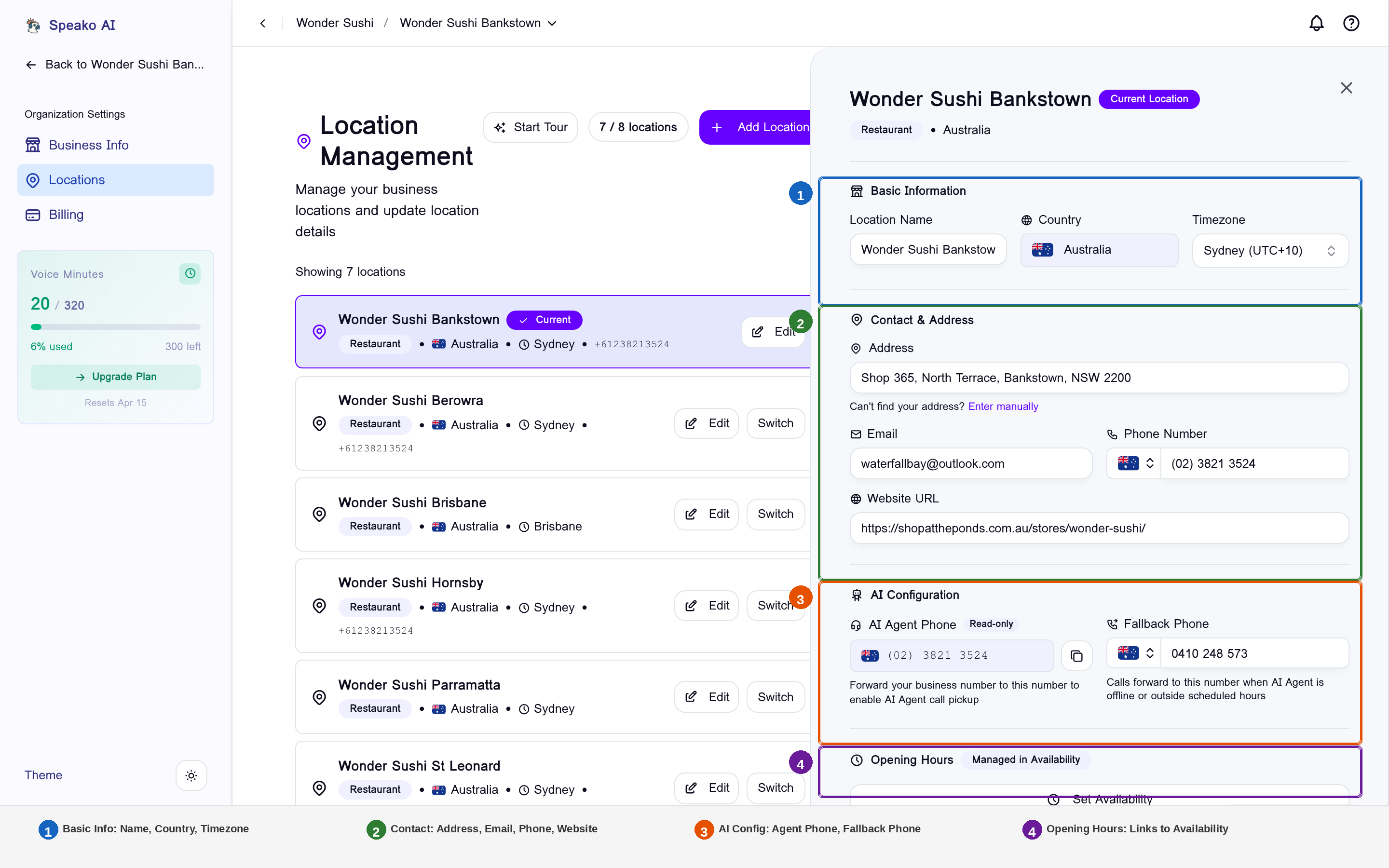
1. Basic Information
Update how this location is identified and its core settings:
- Location Name: Used in the sidebar, location switcher, reports, and notifications. Should clearly identify the venue.
- Country: The country where this location operates.
- Timezone: Affects all time-based operations, updates availability display, and changes when your AI says you're open/closed.
💡 Note: Changing timezone affects how existing availability hours are interpreted. Review your hours after changing.
2. Contact & Address
The details shown to your customers:
- Address: Physical location using address autocomplete. Shown on your booking page to help customers find you.
- Contact Email: Receives booking notifications and is used for customer communication.
- Contact Phone: Your business phone number displayed on the booking page and in confirmations (different from your AI agent phone number).
- Website URL: Link to your website shown on the booking page (must include http:// or https://).
3. AI Configuration
Manage how calls are handled:
- AI Agent Phone (Read-Only): The phone number automatically assigned for AI calls when the location was created. Click the copy icon to copy it to your clipboard.
- Fallback Phone: Where calls go when the AI is unavailable (e.g., after-hours call forwarding). This should be a monitored phone number.
4. Opening Hours
- Click Manage Opening Hours to jump directly to your Availability settings, where you can configure your regular business hours and special closures.
Saving Changes
Changes are saved when you:
- Make your edits in the panel
- Click the black Save Changes button at the bottom
- Wait for confirmation
All changes apply immediately.
What Changes Affect
| Field | Impact |
|---|---|
| Name | Sidebar, reports, notifications |
| Timezone | All time displays and availability |
| Notification delivery | |
| Phone | Booking page, confirmations |
| Address | Booking page, customer directions |
| Fallback Phone | Call forwarding when AI offline |
Next Steps
- Switching Between Locations — Manage multiple locations
- Setting Your Timezone — More about timezone settings
- Configuring Contact Information — Detailed contact setup